



Table of Contents Show
Why transcribe?
With social media content being consumed everywhere, captions are becoming increasingly important – both for viewers and for data-driven edit workflows – text is easily searchable and instead of sifting through hours of footage, you only need to type the one quote into the search box to find the spot in the interview.
Adobe Premiere has just taken a huge step forward here and integrated the transcript tool into the current 2021 version (see article in issue 21:03, or here Speech-to-text Help Site). As part of this, the entire subtitles workflow has been linked to the Essential Graphics Tool and can be used intuitively. We have tested this and fed it with various voice recordings – in German and English, of course, and a little French, Allgäuerisch and Pfälzerisch. You can find videos here – and of course at postproduction-tutorials.net.
Why in Premiere?
There are other tools and tricks to get an automatic transcription, but if you’re already editing in Premiere anyway, it would be “unwise” to add another tool to the pipeline. Other news about the latest update can be found here: Premiere Pro What’s New/ User Guide
And for those who say “But I’ve always done that by hand”: respect and appreciation, but we suspect that there is potential for saving time and effort in your pipeline. Because unlike many tools out there, “Speech to Text” is included for free in the Creative Cloud – so you don’t have to worry about additional costs.
If you want to try it out for yourself, you can send a file with audio to the DP editorial team and we’ll run it through the “Speech to Text” function and send it back to you – if you’ve already exceeded the trial period. Here is the interface to the DP pipeline – upload the files via WeTransfer, Dropbox or whatever else you like. Enter your name and the email address to which we should then send the srt file (or one of the other export formats). Please note: After transcription, the video file will be deleted immediately because of data protection.
And you can even win a CC licence for one year!
But how?
To put it very quickly, this is how it works: For the transcription, the audio is rendered and uploaded to the Adobe server. After a few minutes, the text is displayed and you can select the subtitle type and one of the text layouts already created in advance in the Essential Graphics Panel. The subtitles are now distributed in blocks on the subtitle track in the timeline. The blocks can be merged or separated as required. You can change the texts both in the subtitle window and directly in the programme window.
If you want to change the text layout, you can simply select one or more text blocks in the timeline and change the parameters in the Essential Graphics Panel or select another previously created track style. The transcript can be exported as text or SRT file. Importing the SRT file into the video uploaded to YouTube also worked straight away. That was the very quick version – but let’s go through it in detail – with screenshots and adjustments.
And now step by step
It’s best to use a concrete example: At the beginning of the year, I recorded a remote interview with Noel Powell, the programmer of these innovative After Effects templates, for my Creation FX article in DP 2021:01. I’ve been wanting to edit and transcribe this for a long time to publish it on my tutorial portal. Preferably also with German subtitles.
Firstly, I transcribed the entire interview, as a transcript is particularly helpful for long interviews when selecting unnecessary parts. As the video follows the text, you can simply cut and mark the relevant parts.
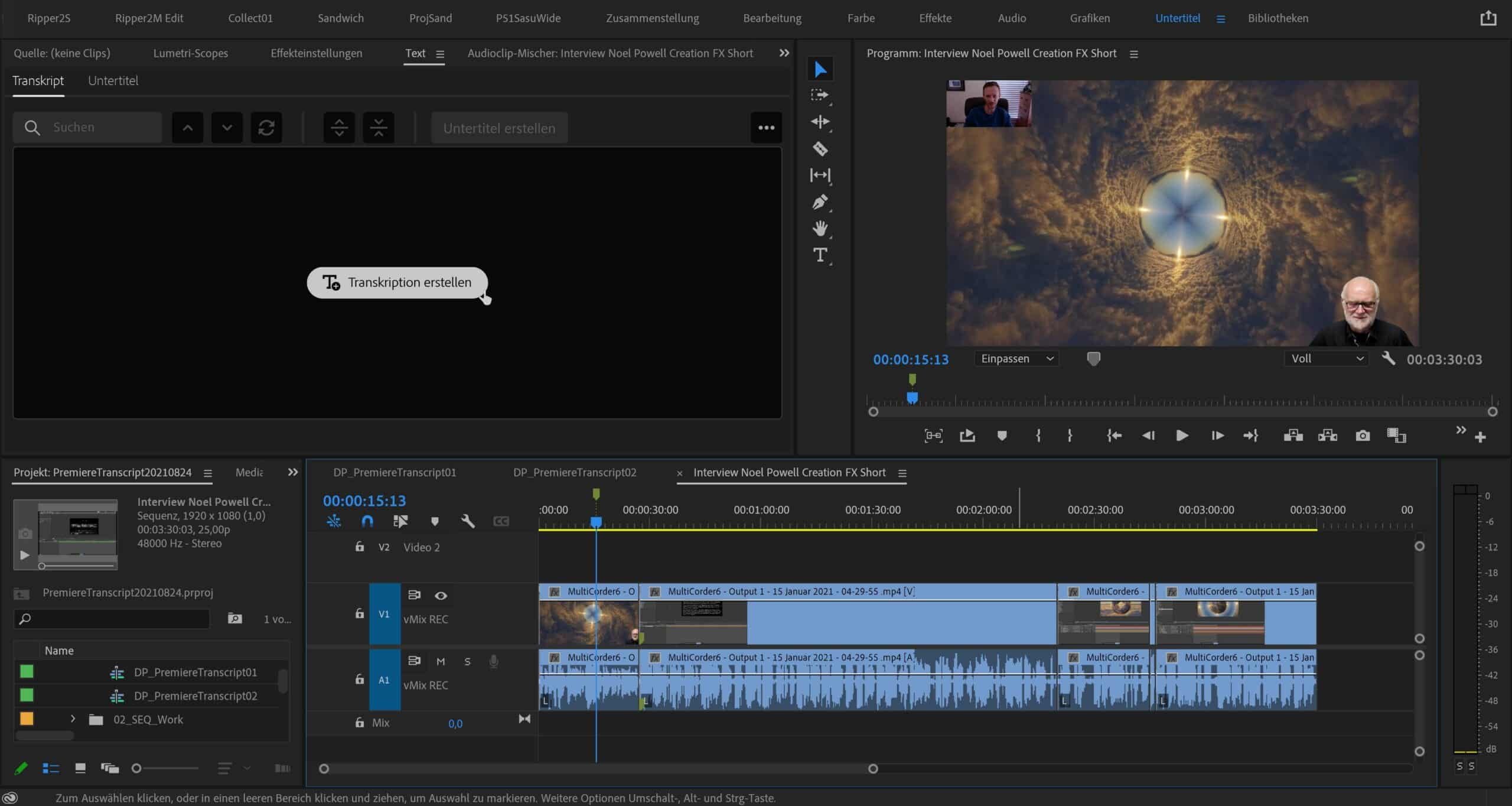
The easiest way to transcribe is to switch to the new subtitle workspace. Then select the timeline to be transcribed and click on the Transcribe tab in the text window.

After selecting the language and starting the transcription, an audio file is automatically rendered and uploaded to the Adobe Cloud.

The transcribed text then appears in the text window after a short wait and can also be edited directly there. The timeline runs in synchronisation with the highlighted text passage.
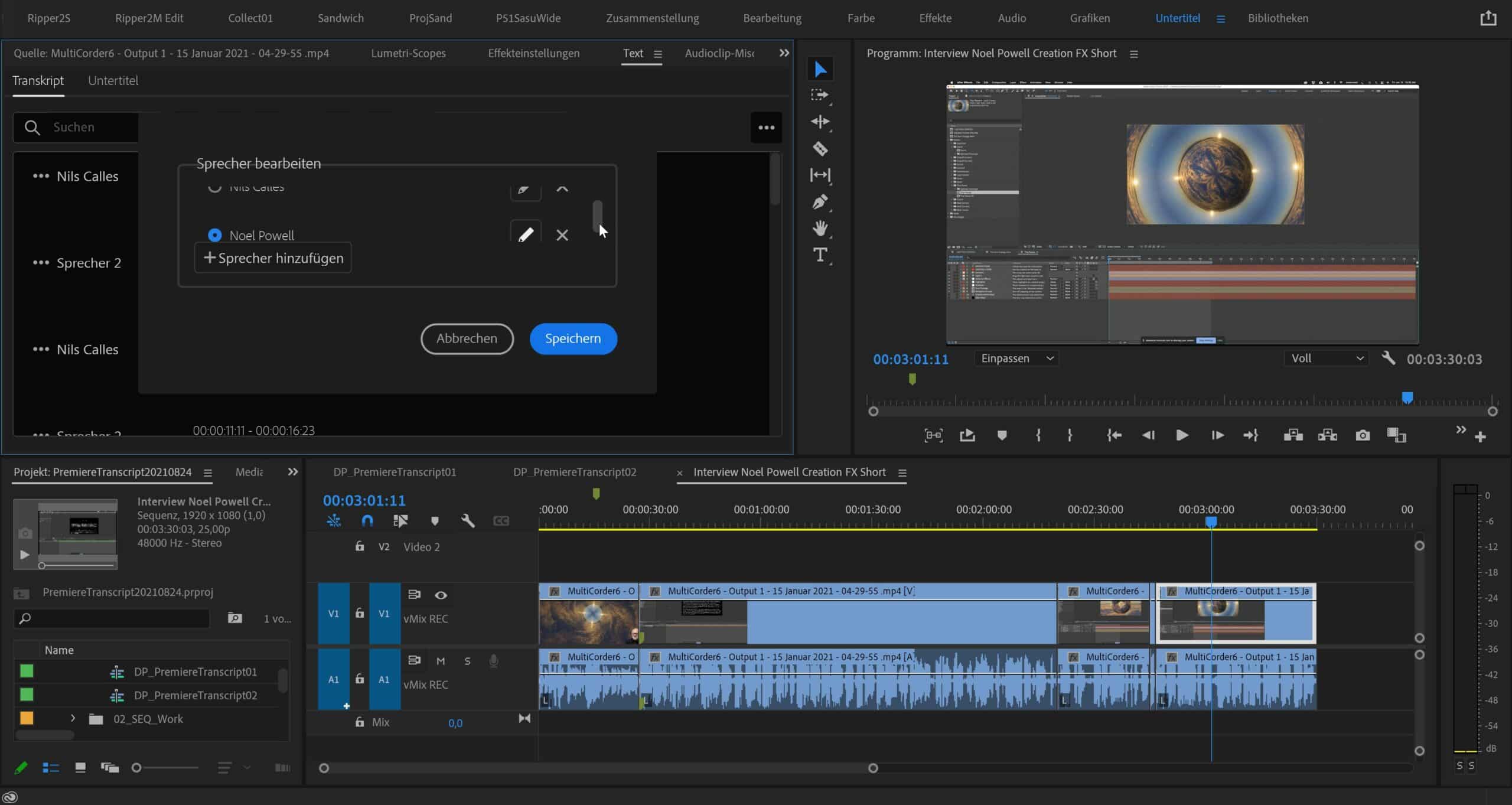 Different speakers can also be recognised. The names of the speakers can be edited by clicking on the 3 small dots. It is not immediately obvious that there is a small bar on the side of the window that can be used to scroll to the second speaker in order to change it.
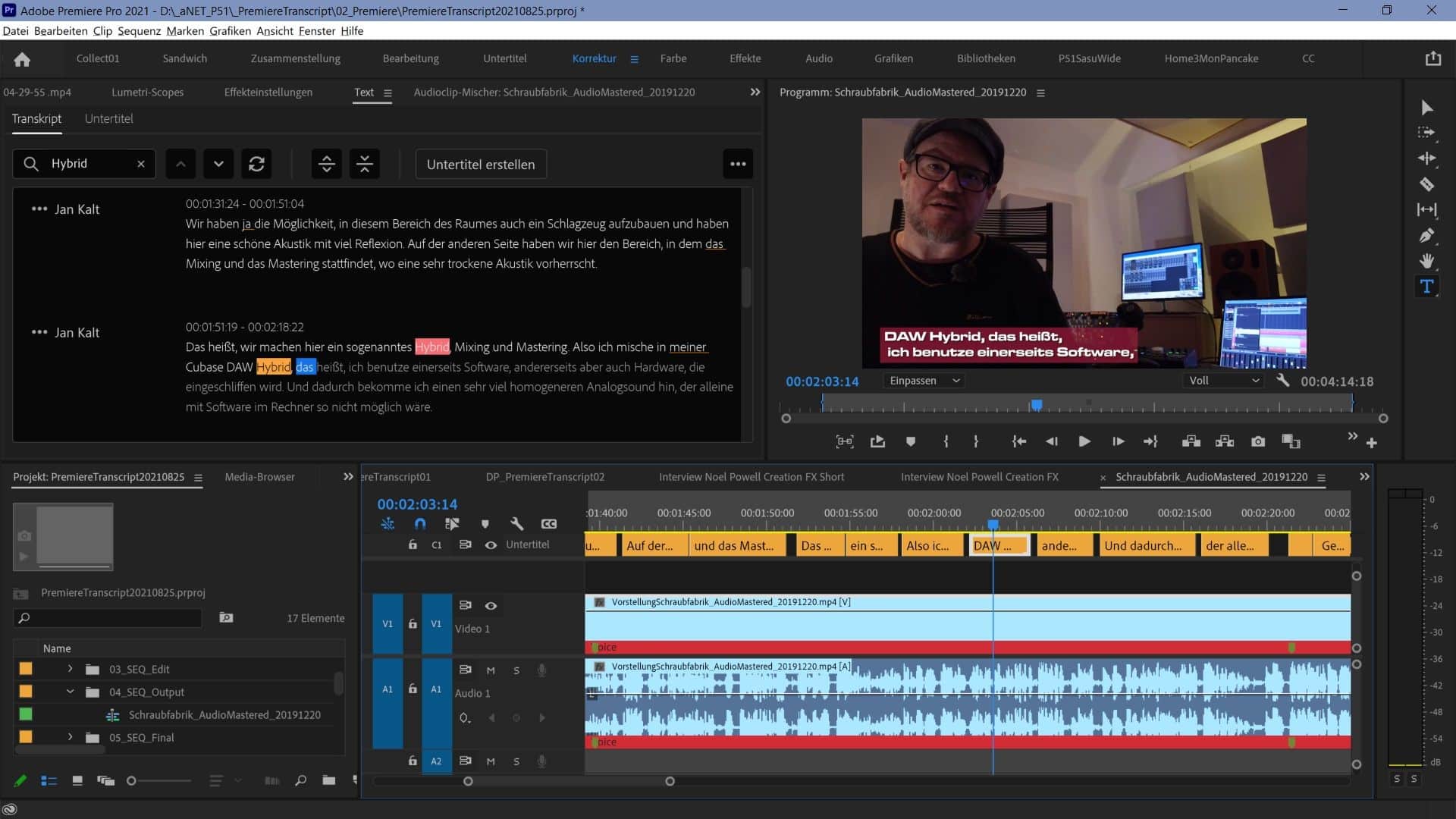
There is a search field at the top of the transcript window that you can use to search for words or quotes. This allows you to quickly find text passages in interviews, for example to correct misspelled technical terms or simply to find important text passages. By clicking on the circle-arrow symbol, you get a replace function to effectively correct repetitive errors.
 Transcribing clearly spoken texts works very well. The tool also copes quite well with English technical terms in a German text. Once the errors in the transcript have been corrected, the subtitles can be created. They now have their own track and the look is controlled via the Essential Graphics Panel.
Subtitles, nicely done

The best way to do this is to create a template in the Essential Graphics Panel in advance, which you can then select directly when creating subtitles. Simply click with the text tool in the programme monitor and write a representative two-line text. Then select a suitable font, set the colours, border, shadow and background to your liking and save it with “Create style”. The text style then appears immediately in the project window. It can be saved from there by right-clicking on “Export text formats” for later use in the Adobe Creative Cloud, for example. From there, it can later be dragged and dropped into another project.
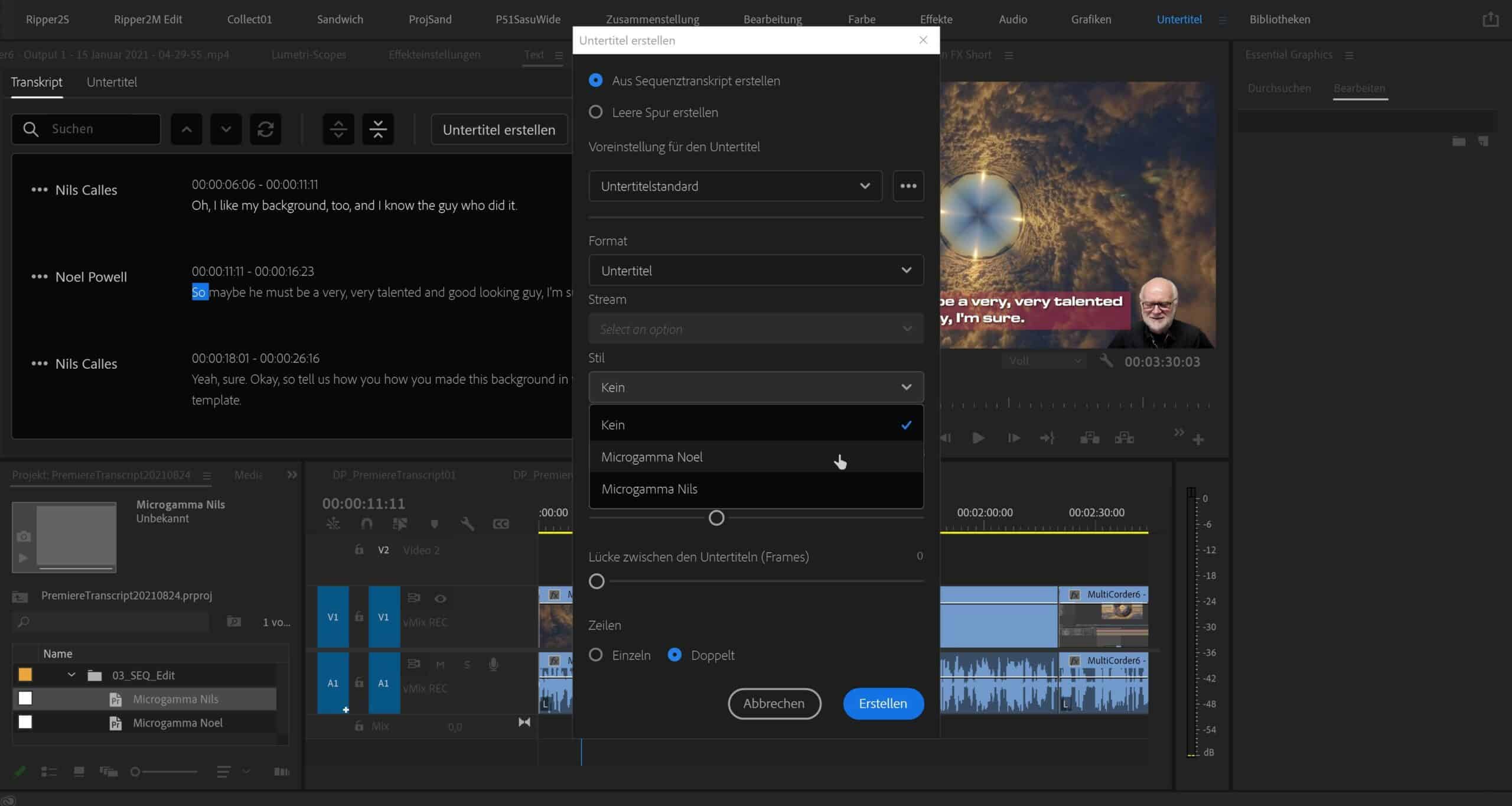
All text styles available in the project can be selected directly in the dropdown of the “Create subtitles” tool. In this way, the type design can be modified very easily and you can quickly switch between different layouts so that the subtitles can also be adapted to the customer CI. The subtitles are then divided into blocks on the subtitle track at the top of the timeline. The blocks can then be easily merged or separated as required using the arrow icons. They can also be changed in length or moved just like images or videos using the corresponding mouse tools.
 If you want to modify some subtitles, you can select individual ones or even several using the Shift key and edit them in the Essential Graphics window, for example to change the colour of the text background for a speaker. Subtitles can also be positioned differently if they are overlaid with a name insert. The easiest way to do this is to use the Align and Transform widget by clicking on one of the nine squares.

However, you can also move and scale the text field in the programme window using the mouse.
Important: This step should be carried out after selecting the track style. If you change it again, all changes will be lost and all subtitles will be positioned in the same place again. This is because, as the name suggests, the track style always affects the entire subtitle track.
It would be advantageous to be able to apply a track style only to individual subtitles in order to work a little faster.
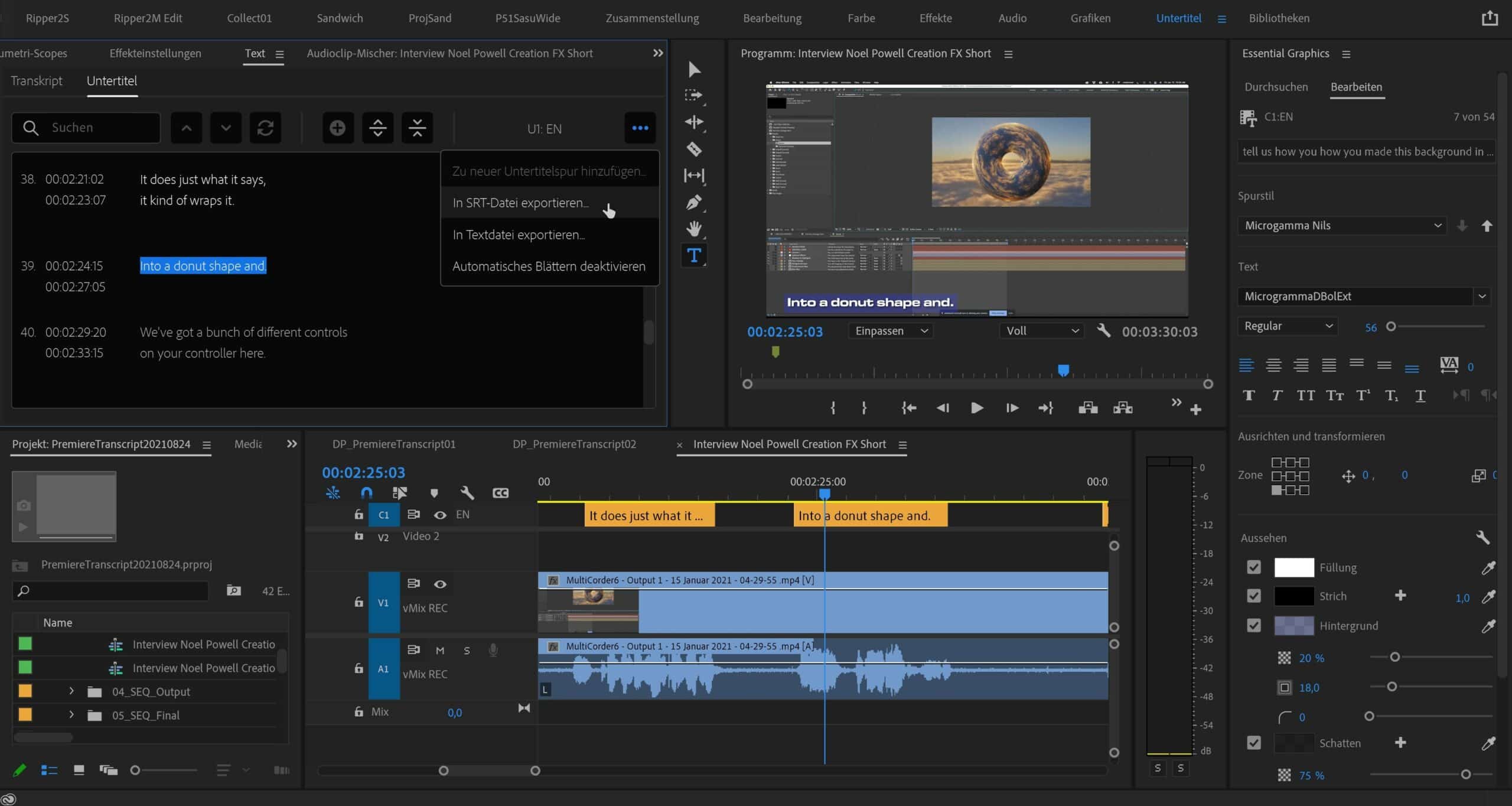
Once the subtitles have been created and corrected, there are various options for outputting them. As text to integrate an interview into an article or as SRT for YouTube subtitles.
Test subtitles before uploading!
The free Pot Player presented in issue 2020:06 is also suitable for checking the SRT files before uploading. It automatically displays the SRT subtitles if they are in the same directory and have the same name as the video file.
You can also see straight away that the display of SRT subtitles does not offer the same options as in the Premiere Essential Graphics Panel due to the format. Only simple formatting such as text attributes, text colour and text position are adopted via HTML-like tags.
There are also formats for various broadcast standards, which are embedded in the corresponding format when the video is rendered out. Of course, this only works with formats such as MXF, which also support this metadata. If you want to retain the graphic design from Premiere, the subtitles can always be “burnt in” to the video.

The SRT files can also be used to initiate translations. For example, you can copy them into online translation tools such as Deepl and have them translated there.

We copy these texts into the text editor and save them with the .srt file extension. Simply drag this into the project and into the corresponding timeline. This automatically generates a new subtitle track and the embedded timecode markers are retained. This ensures that the translated subtitles are in the right places again.
Languages
Well, it wouldn’t be “language to text” if it could only be a slightly Hanoverian German – so far there are 12 languages to choose from: English (US), English (UK), Simplified Chinese (Mandarin), Traditional Chinese (Cantonese), Spanish, German, French, Japanese, Portuguese, Korean, Italian, Russian. Hopefully that will be enough to start with, but it is likely that more will be added over time. Maybe even Allgäu and Palatinate! Or other special dialects – but as in all areas of AI development, that remains to be seen.
And here’s something to look at
In the future, there may even be a possibility for automated translations. But for now, there are various ways to use other tools to help – here’s an example workflow in the video for the variant with Deepl.
But as so often: under Premiere Pro Tutorials you will find practically all the functions of Premiere explained – it’s worth browsing. And if you want to see the whole workflow especially for Youtube again as a video: Here is a short English tutorial with Youtube SRT as an example.
And here is a long video in which Colin Smith explains everything in detail… But without translation.
And you want to test it?
As promised earlier: If you want to test it quickly on a video, you can send me a file with audio, and we’ll run it through the automatic transcription and send it back to you – if you’ve already exceeded the trial period.
Here is the interface to the DP Pipeline – upload the files via Wetransfer, Dropbox or whatever else you like. Enter your name and the email address to which we should send the srt file (or one of the other export formats). Please note: After transcription, the video file will be deleted immediately due to data protection.
And if you want, you can also take part in the raffle for a 1-year licence in the form, until 30 September 2021.
